Kaufland Global Marketplace lets you sell across several European countries from a single seller account. Once connected to Nembol you can publish your catalog, keep stock and prices in sync in both directions, run Kaufland vouchers, and manage your orders without leaving Nembol.
In this article, you can find the instructions to connect your Kaufland account to Nembol:
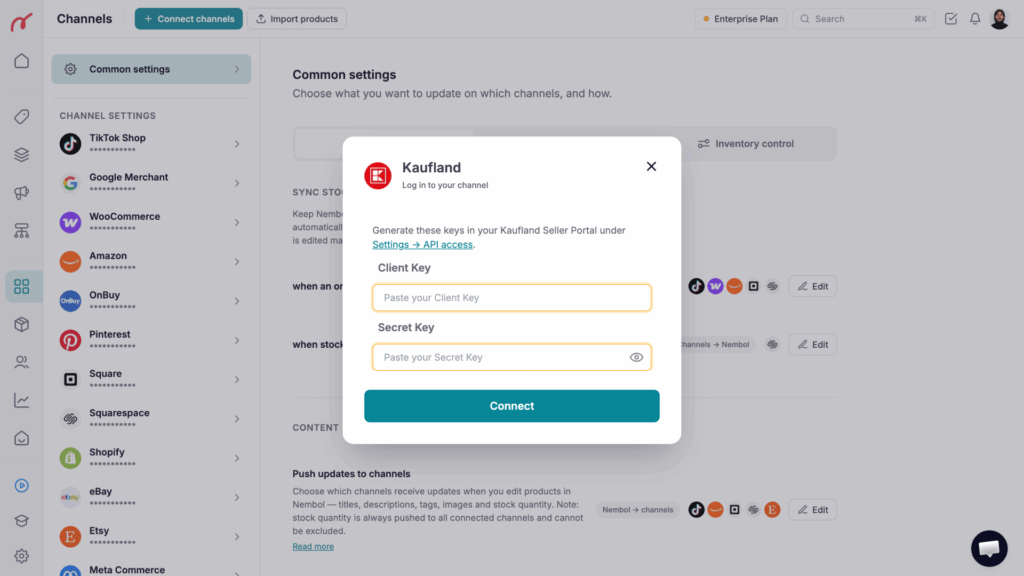
Enter your Client Key and Secret Key (generated in your Kaufland Seller Portal → Settings → API access)
Click on “Connect”
Nembol validates your credentials and establishes the connection
You’ll be redirected back to the Channels tab to configure common settings
Kaufland does not use a login-based (OAuth) connection: you connect by pasting your API credentials into Nembol.
Before you connect, make sure you have at least one warehouse and one shipping group set up in your Kaufland Seller Portal. Nembol automatically selects your defaults when publishing, and without them your listings cannot go live.
Where to get Kaufland API keys
To connect Kaufland, you must generate API credentials:
Log in to your Kaufland Seller Portal
Go to Settings → API access
Create or copy your Client Key and Secret Key
Paste both into Nembol and click “Connect”
Treat these keys like a password: anyone holding them can act on your Kaufland account. If you ever need to revoke access, regenerate them in the Seller Portal and reconnect the channel in Nembol.
Choosing your Kaufland marketplace
A single set of API credentials covers every Kaufland market you sell on, so you only connect once. Nembol supports:
Germany (DE)
Austria (AT)
Czech Republic (CZ)
Slovakia (SK)
Poland (PL)
France (FR)
Italy (IT)
Netherlands (NL)
Spain (ES)
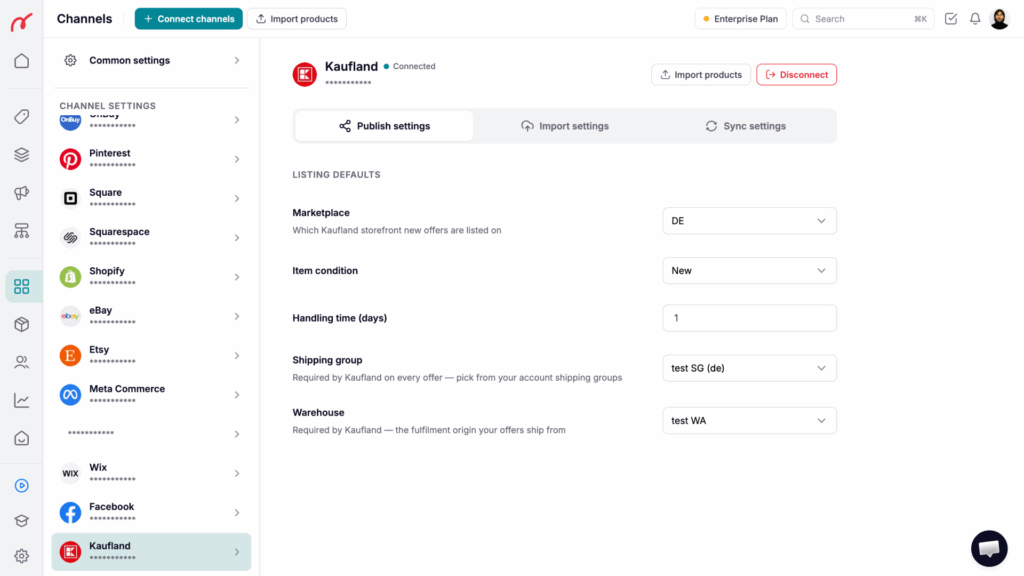
The market your new listings are published to is set in Channels -> Kaufland -> Publish settings -> Marketplace. Germany (DE) is selected by default.
Kaufland common settings setup
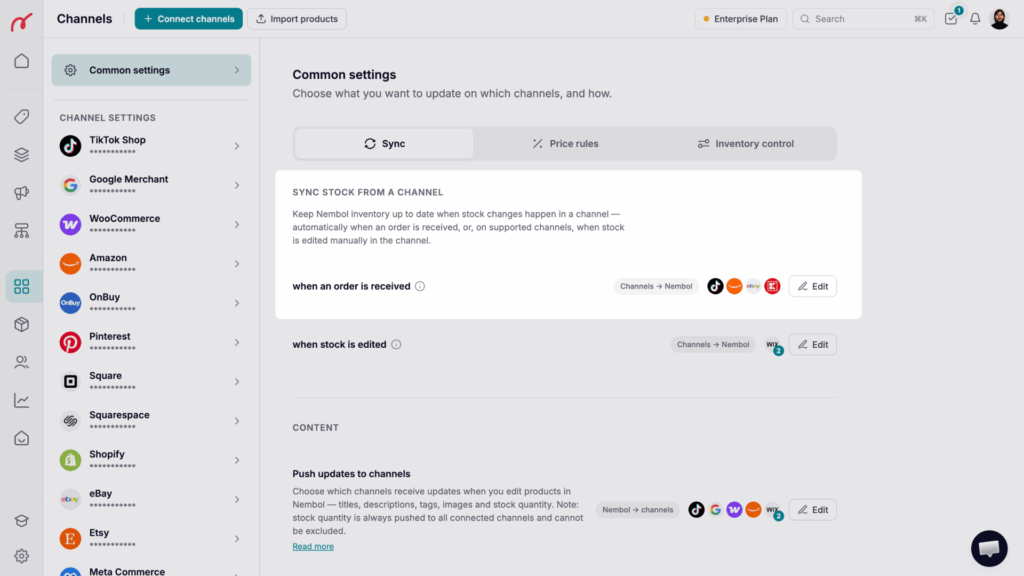
Sync stock from a channel
When an order is received. When enabled for Kaufland:
Every Kaufland order is sent to Nembol
Stock is automatically reduced in Nembol
Stock changes are propagated to your other connected channels
Kaufland also notifies Nembol in real time through webhooks. This means a stock change made directly on Kaufland — not only one caused by an order — flows back into Nembol and out to your other channels, so your quantities stay aligned everywhere.
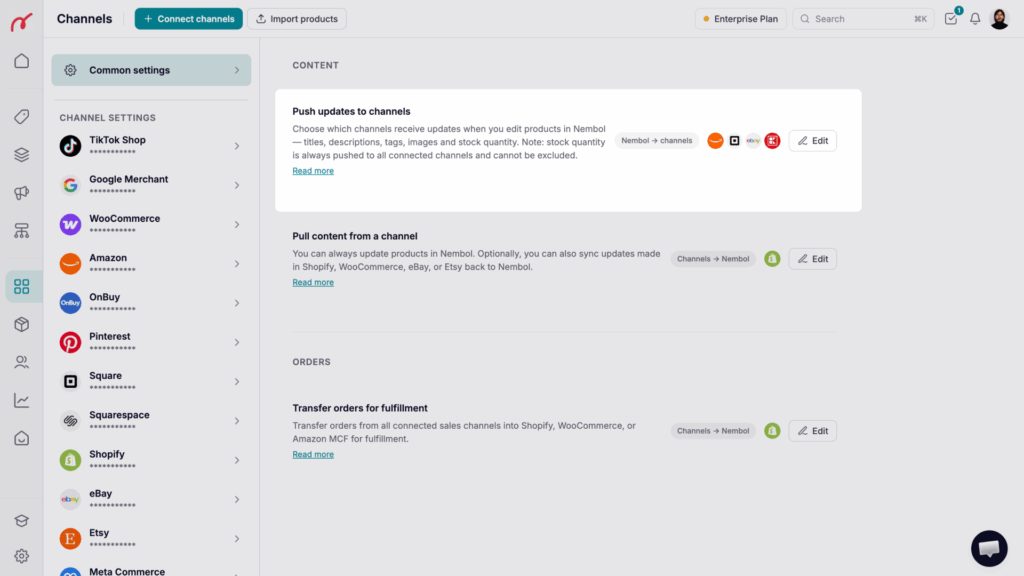
Push updates to channels
When enabled for Kaufland, changes you make in Nembol are pushed to your Kaufland offers automatically, including price and stock. You can also publish new products and delist existing ones from Nembol.
Steps to activate: open the Channels tab, find the Push updates to channels setting, and select Kaufland.
Kaufland's catalog is shared between sellers, so content does not sync back: a change made to a product's content on Kaufland will not update Nembol. Stock sync from Kaufland: yes. Content sync: no.
Publish to Kaufland
Product requirements before publishing
To publish to Kaufland via Nembol, two requirements must be satisfied:
1. A valid, registered GTIN/EAN Kaufland identifies every offer by its barcode, so each product you publish needs a valid EAN that is registered to it. Products without one cannot be published.
2. A warehouse and a shipping group Both must exist in your Kaufland Seller Portal. Nembol selects your defaults automatically.
How multi-variant products are published
Kaufland’s offer model is strictly one offer = one barcode = one single product. There is no such thing as a listing with size or color options on Kaufland.
If you publish a multi-variant Nembol product, Nembol creates one separate Kaufland listing per variant, and every variant must carry its own EAN. A product with five variants becomes five independent Kaufland listings.
Kaufland does not support multi-variant listings. Variants are published as separate listings, each requiring its own registered EAN.
Images
Kaufland accepts one image per product. Image galleries and per-variant images are not supported: Nembol sends the product’s main image, and each variant published as its own listing uses its own main image.
Item conditions
Kaufland supports nine item conditions, from new to various grades of used and refurbished. You choose the one that applies in Nembol’s Kaufland publish settings.
Publish settings within Nembol
In Kaufland publish settings inside Nembol, you can configure:
Target marketplace (which Kaufland country the listing goes to)
Item condition
Price rules, applied per channel so your Kaufland prices can differ from your other channels
Warehouse and shipping group, taken from your Kaufland Seller Portal defaults
Promotions on Kaufland
Nembol can create native Kaufland discount vouchers without you having to open the Seller Portal. A voucher can be a percentage or a fixed amount off, and runs between a start and an end date that you set.
Vouchers require a one-time action on your side: accept the Voucher Terms & Conditions in your Kaufland Seller Portal, separately for each market you sell on. Until you do, Nembol applies a price drop instead of a native voucher.
Orders from Kaufland
Kaufland orders are imported into Nembol with the customer’s details, shipping address, and line items. Stock is decremented in Nembol and pushed out to your other connected channels, so a sale on Kaufland cannot oversell you elsewhere.
When you ship an order, mark it as shipped in Nembol: the tracking number and carrier are pushed back to Kaufland automatically, so the buyer is notified and your seller metrics stay clean.
You cannot fulfil orders from your other channels through Kaufland: Nembol does not route orders into Kaufland for fulfilment. Kaufland orders can, however, be pushed out to a connected webstore and fulfilled there.
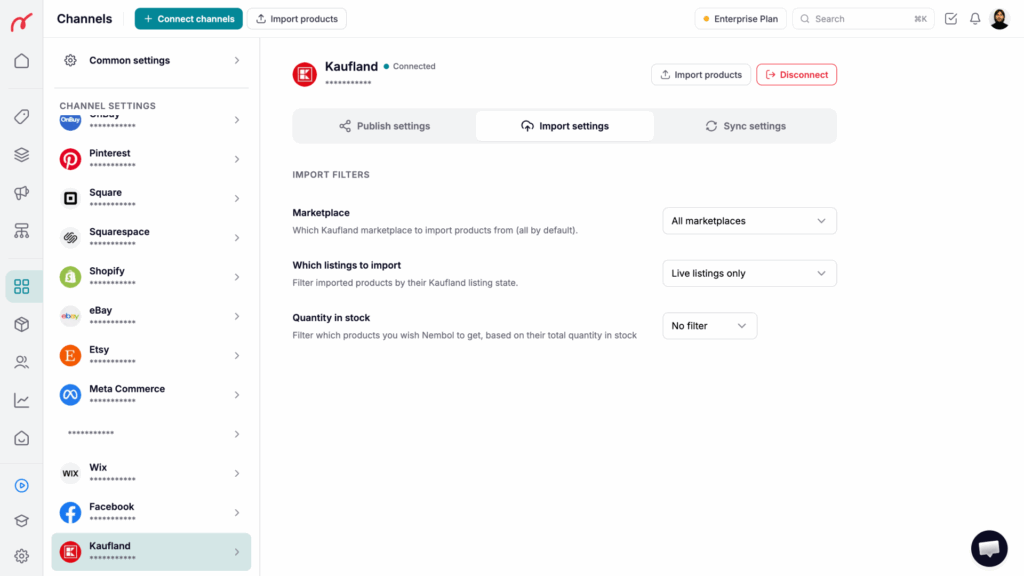
You can narrow down what gets imported with these filters:
Marketplace — all markets by default, or a single country
Listing state — live, available, on-hold, incomplete, or all
Stock quantity
Variants are not grouped on import. A Kaufland catalog entry that exists in several variants arrives in Nembol as separate single-variant products, which you can merge manually if you want one multi-variant product.
Kaufland’s API does not expose product descriptions, so imported products usually arrive with an empty description. Write it once in Nembol and it will be stored on the product and used for your other channels.
Was this article helpful?Thanks for your feedback!