Use “Connect channels +” at the top left to open the list of available channels
Pick Faire
You will land on Faire’s authorization page: sign in with your brand account and grant Nembol access
Faire sends you back to Nembol, where the Faire settings panel opens. That’s your confirmation the connection went through
Please note: Faire is a B2B wholesale marketplace: your listings are sold to retailers, not to end consumers. For this reason, a few Nembol behaviours work differently on Faire than they do on your website or on B2C marketplaces — in particular pricing (which is dual, wholesale and retail) and the minimum quantity a buyer must order.
Common settings setup: Faire
In Nembol you can find settings which are common to all channels, called Common settings, and the settings which are specific channel by channel.
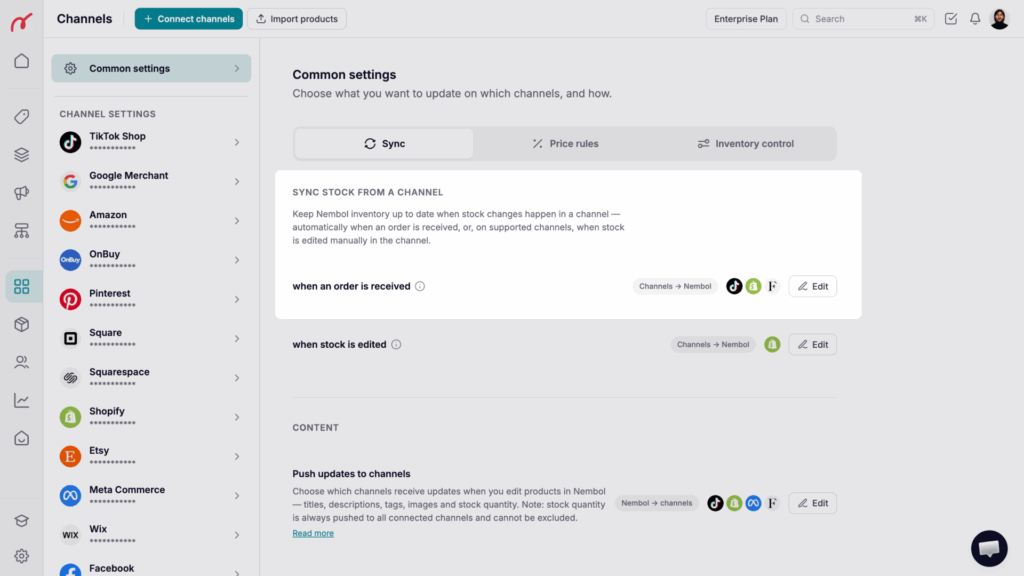
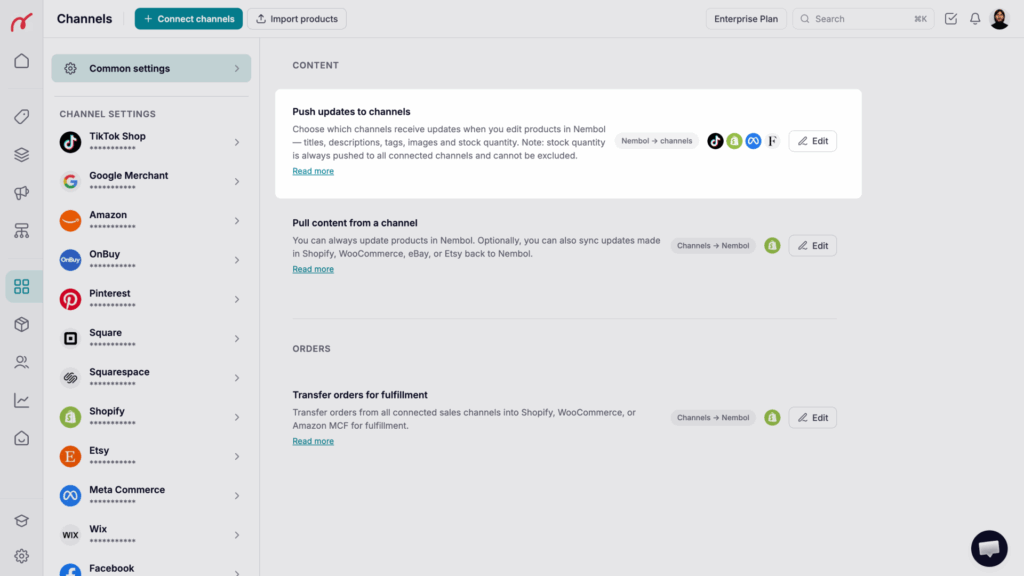
Faire supports two of the common sync settings: Sync stock from a channel and Push updates to channels.
Sync stock from a channel
When an order is received
Select Faire if you want each wholesale order placed on Faire to lower the matching quantity in Nembol, which then propagates the new figure to all your connected sales channels. Nembol checks Faire for new orders on a continuous cycle.
How to switch it on:
Go to the Channels tab
Open Common settings
Use the pen icon beside “When an order is received”
Select Faire
Select every other channel whose stock should follow along
There is no save button: your choice is saved automatically
Push updates to channels
Select Faire if you want to manage your Faire listings directly from Nembol. Saving an edit in Nembol then sends it to the linked Faire listing.
What gets sent depends on how Push updates is set for Faire:
Push updates OFF — stock and price only: stock quantity, price, SKU and GTIN travel to Faire. Title, description, images and category are left exactly as they are on Faire
Push updates ON — full content: title, description, images and category travel as well
Keep Push updates limited to stock and price if you have written wholesale-specific copy or uploaded dedicated imagery directly on Faire and only want the numbers kept aligned. Extend it to full content if you would rather maintain one catalog in Nembol and mirror it everywhere.
Products connected to Nembol should not be edited directly on Faire: Faire sends no notification when a listing changes, so your edit never reaches Nembol or your other channels, and the next push will overwrite it.
Recommendation: make your changes in Nembol, with Push updates to channels enabled for Faire.
Publish to Faire
Requirements before publishing
Faire rejects a product unless all of the following are in place. Sort them out in Nembol before your first listing attempt, so you are not stopped halfway:
A wholesale price and a retail price — see Price rules below
A minimum order quantity and a unit multiplier
A Faire category
A unique SKU for every product and variation, not repeated anywhere in your brand
At least one image
Optional, but worth filling in: the HS / tariff code, which Faire uses on cross-border orders.
Price rules
Faire shows retailers a wholesale price — their cost — alongside a retail price, the MSRP they are expected to sell at.
The Price rules setting for Faire shapes the wholesale price, starting from the price the product holds in Nembol. Since most catalogs are priced at retail in Nembol, this is normally where you apply a reduction, by percentage or fixed amount
The retail multiplier produces the MSRP: wholesale price × multiplier. Keystone pricing — a multiplier of 2.0 — is the trade standard and Nembol’s default
Choose whether to use the automatic rounding
Faire handles prices per currency and selling region, and Nembol formats them accordingly on its own.
Minimum order quantity and unit multiplier
Minimum order quantity — the smallest order a retailer can place for that product
Unit multiplier — how many units make up a case or pack. Set it to 1 when retailers may buy single units
How to select the Faire category before publishing
Every Faire listing must sit somewhere in Faire’s own taxonomy, so a category is resolved before publishing. Nembol works through four steps:
The default Faire category, if one is set in your channel settings
Failing that, an exact match between your Nembol category and Faire’s taxonomy
Failing that, the closest Faire category Nembol can infer from the product’s content
If the match is still uncertain, Nembol asks you to choose
For a homogeneous catalog, setting a default category is by far the quickest route to publishing in bulk.
Images
Faire accepts up to 20 images in the product gallery, plus images for each variation. Unlike eBay or Etsy, Faire places no restriction on which variation an image may belong to, so you can attach one wherever it helps.
Variations
Variations are published together with the product in a single operation. Remember that their structure is then fixed — see Limitations below.
Publish settings within Nembol
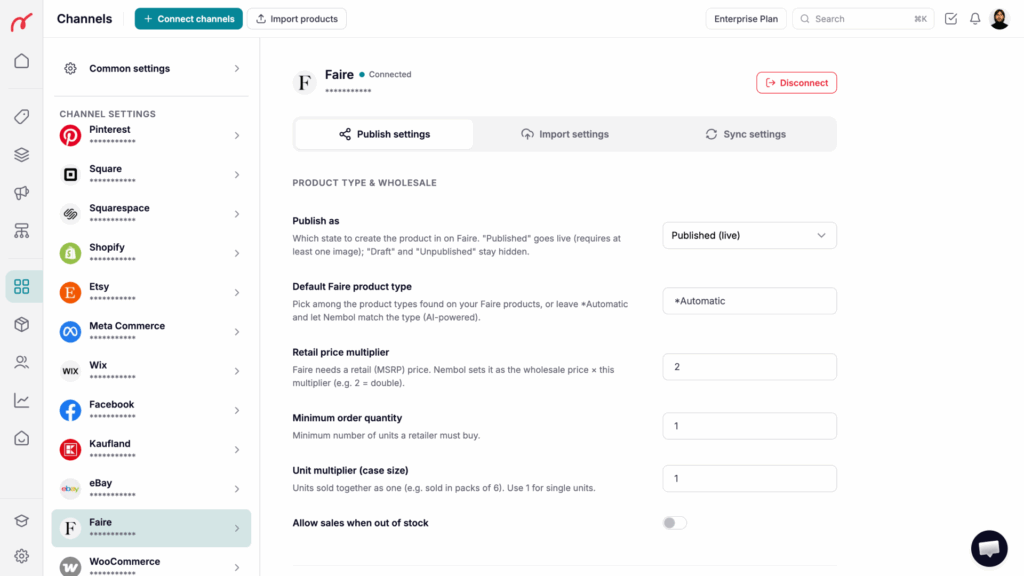
In Faire → Publish settings, you can configure:
Product type & wholesale
Publish as — which state to create the product in on Faire. “Published (live)” goes live and requires at least one image; “Draft” and “Unpublished” stay hidden.
Default Faire product type — pick among the product types found on your Faire products, or leave *Automatic and let Nembol match the type (AI-powered).
Retail price multiplier — Faire needs a retail (MSRP) price. Nembol sets it as the wholesale price × this multiplier (e.g. 2 = double).
Minimum order quantity — minimum number of units a retailer must buy.
Unit multiplier (case size) — units sold together as one (e.g. sold in packs of 6). Use 1 for single units.
Allow sales when out of stock — whether retailers can still order once the product has run out.
Content
Title prefix — text prepended to the product title on publish.
Shorten long titles — trims titles that run longer than Faire accepts.
Default tariff (HS) code — applied when the product has none. Optional.
Limitations
1. Faire variations
Option names and values (Size, Color, and what they contain) are locked once the product has been created. Faire’s API offers no way to rename, add or remove them afterwards.
Recommendation: get your variations right in Nembol before publishing, and always test with one product first. Changing the structure later means removing the listing on Faire and publishing it again from Nembol.
2. Faire SKUs
Faire requires each SKU to be unique across your whole brand. Duplicates are rejected at publishing, so clean them up in Nembol first.
3. Buyer details
Faire does not expose the retailer’s email address to connected apps, so Nembol creates no customer record for these orders. The order itself is imported and stored in full.
4. Reconnecting Faire’s authorization does not renew itself. If it expires or you revoke it on Faire, syncing stops and Nembol asks you to connect the channel again — there is no partial or silent recovery. Reconnect from the Channels tab and your existing links are preserved.
Since Faire offers no promotion tool to connected apps, Nembol applies the promotion by discounting the wholesale price for the period you set. The retail price keeps following your regular wholesale price, so the MSRP stays consistent and the retailer sees a genuine temporary discount on what they pay.
When the promotion ends, Nembol restores the original wholesale price automatically.
Orders and shipping notification
Nembol checks Faire for new orders on a regular schedule and imports them with no action on your side. Connecting the channel also imports your recent order history, so your stock starts from an accurate figure.
Once an order has shipped, you can send the shipping notification to Faire from Nembol, including tracking number and carrier. Faire then updates the retailer.
Quantities pushed to Faire always respect the inventory buffer set in Nembol — useful insurance on a channel where each order takes a large bite out of your stock.
Import from Faire
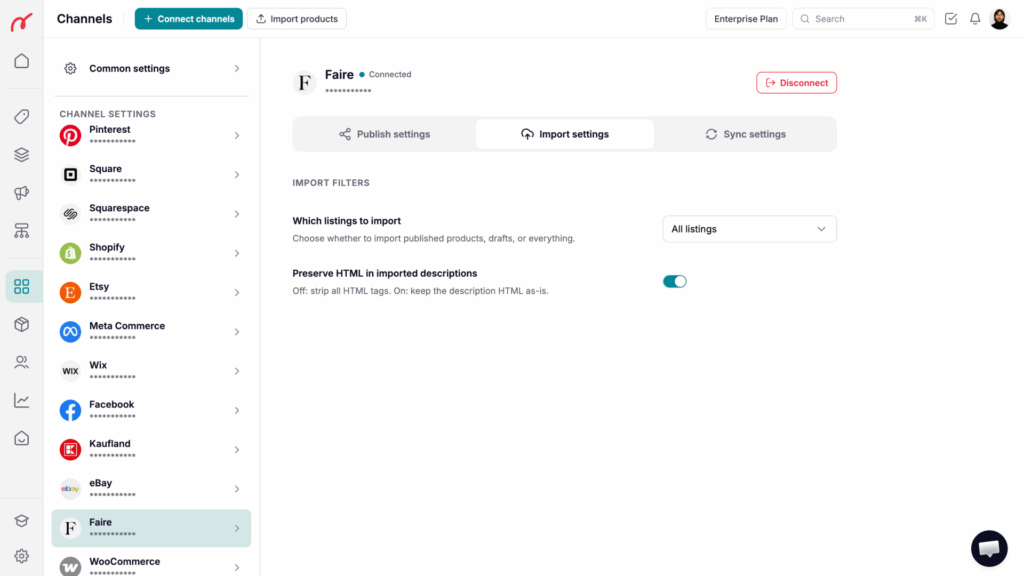
In Faire → Import settings, you can configure:
Which listings to import — choose whether Nembol imports published products, drafts, or everything. “All listings” is the default.
Preserve HTML in imported descriptions — off strips all HTML tags; on keeps the description HTML as-is.
In the Import overlay you can review the import settings for Faire. To manage them, click Settings at the bottom right: that takes you straight to the Faire settings described above.
A Faire listing whose SKU already exists in Nembol is linked to the product you have, instead of being imported a second time, so an import does not leave you with duplicates.
Was this article helpful?Thanks for your feedback!